

Update on Bibledit
This is an update to my first article about Bibledit from October 2015, which was posted here at MAP under the title Bibledit: Now translation teams can edit Scripture on ANY device!
I will not repeat information given in my first article except to repeat this quick list of capabilities that Bibledit provides for Bible translation teams today:
- Bibledit has much of the same functionality of Paratext, but it works on any smart device— including all types of computers and Android tablets and iPad.
- A translation team can work with Bibledit via the Internet without installing anything. We call this the Cloud version. But for most translation team members, it will be better to install Bibledit locally. This is called the Client version. The Client version saves editing changes made by each team member to his/her device, and when they have an connection, their work will automatically be saved to the Cloud.
- Many excellent and scholarly translation resources available in Bibledit— as I will explain below. And one can view translation resources while editing a translation on the same screen.
- Bibledit can transfer changes in a Bible text to a local instance of Paratext. I think many translation team leaders will want to do this. But the opposite is also possible: Bibledit can receive changes in a Bible text from Paratext.
- Bibledit has many powerful export options. These include creating web-ready HTML files, beautifully formatted OpenOffice files (which then can easily be turned into PDF files), and Sword modules for Bible-reading applications on all smart devices.
Bibledit is being actively developed by Teus Benschop who has been very responsive to requests by the program’s users. The only thing I need to change from my first article is that the main user interface window was called the ‘Workbench’, and that has been renamed to ‘Workspace’. Since I want to emphasize how wonderful this program is on the Android platform, I will give almost all the screenshots from my tablet.
Workspaces
The user is given a huge range of choices concerning how the Scripture translation projects will appear on the screen, and the position of other elements that can be shown. More than one translation can have an on-screen editing window, and the other elements which can be displayed include the Resources panel, translation team and consultant notes, search results, a consistency tool.
Here is my favorite workspace. This workspace displays Notes at the bottom. There are also many options for how notes are displayed. In this case only one note is showing because I have the selection criteria set to display notes only for the current chapter, not the current verse or current book.

The workspace below is arranged in columns and shows a search column. Clicking on a link in the search results moves the editor and resources to display that verse.

A recent change is that one can switch between different editors from within the workspace by choosing the blue ‘editor’ link. My favorite two editor options are the visual verse editor shown in the two screenshots above, and a USFM chapter editor.

Using the Translate menu option or a setting choice called Basic Mode, one can see various workspace elements in full-screen mode. I enjoy using the Basic Mode because the menu options become nice big, easy-to-tap buttons.

Resources
Below is a screenshot showing the list of resources I have made available to my translation team members. Members can also add more resources. Note that the user can rearrange the resources to fit their needs, and the colored dividers help the user quickly find whatever sections he/she has set up.

At the bottom of the resource list page are four options not shown in the screenshot above. Two important ones are:
- A button to add more resources.
- There is a link that says, “Install all the above resources on the device.” This makes it so that the user does not have to always be connected to the Internet to see the resources, and the locally cached resources display instantaneously.
If the user chooses to add resources, this is the list that comes up:

The choices for resources have exponentially expanded since my first article! The SWORD module choice allows the user to choose from modules from four huge on-line directories. It seems like you scroll forever before hitting the bottom of that list. BibleGateway has most major-language Bibles and a list of more than two pages of commentary resources are found under the StudyLight link. My top three suggestions for commentaries is visible in the screenshot of the Resources list.
Extreme Reliability
Bibledit clients installed on computers or tablets will automatically send any changes, and the default setting is for this to be done every five minutes. In 2015, when I was working with the part of our translation team that is located in Papua, Indonesia, we experienced some data loss when multiple team members were in the same room and working on the same chapter. Another time, there was data loss that came when switching from one Internet connection to another. Such problems were rare even at that time, and were caused by the extreme unreliability of the Internet connection. Teus has now made wonderful improvements, so that even though the Internet currently is worse than ever in Papua, we are not experiencing any data loss. Our members may not be able to connect for weeks at a time, but when they do, the data is sent without errors.
Email notifications
Bibledit has several kinds of e-mail that I appreciate.
- If a user tries to do something dangerous, like pasting in text that exceeds the percent of change allowed in a verse (a setting under Preferences), or like erasing multiple verses in the USFM editor, the change is rejected and the user receives an e-mail telling him/her what was rejected and why. A big red flag appears, so the user knows before seeing the e-mail that his change was rejected.
- Each user or administrator can sign up for various kinds of e-mail messages. I get e-mail messages any time a user creates a Note. Right now I just move those messages into a folder within my In-Box. I may not need them because Bibledit itself gives good options for viewing those Notes. Sometimes I notice something that I want to look at immediately.
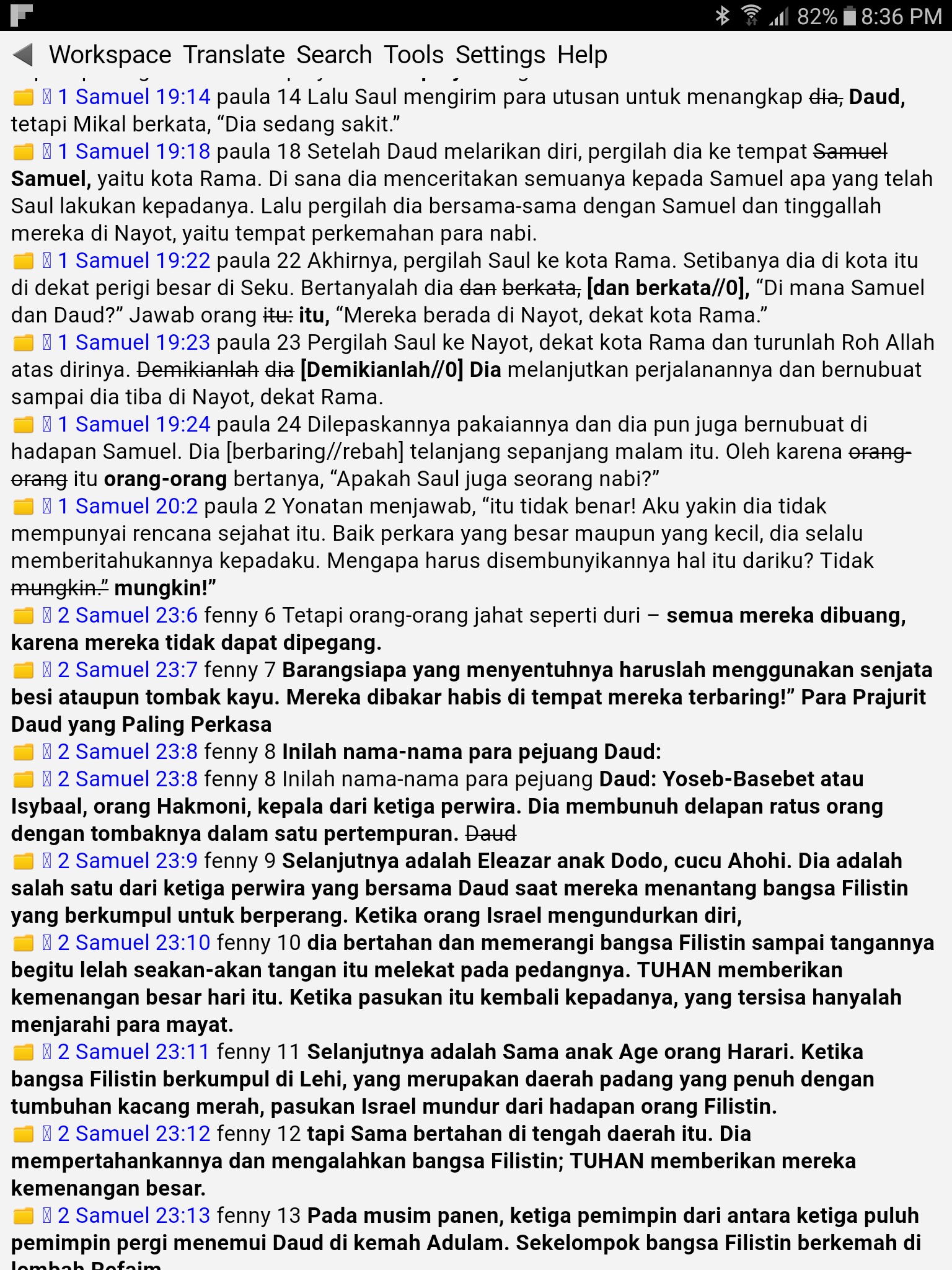
- My favorite e-mail is the one that tells me how many changes were made in Bibledit in the last 24 hours. The link in that e-mail will open the Cloud version of Bibledit in my browser, or I can go to the Changes page inside the Client program. Then I can see a very clear display of the changes made by each member of the team.
Multiple Export Options
Bibledit has always had wonderful export options. Now they are even more expanded. As I mentioned before, Bibledit’s exports to Openoffice files are beautifully formatted and great for printing portions of a Bible translation. Now Bibledit can also send files directly to FreelyGiven’s BibleDropBox, which outputs Bible files into all kinds of electronic Bible formats. Two more useful exports are listed in the next section.
Real-time displays of the translation progress
We are working on a translation project where we can be open about sharing what our translation team is doing. For those who would like to allow people in the target community to see the on-going translation work, Bibledit hosts a simple HTML Bible site which can be viewable by anyone. Here is a direct link to our HTML viewing site. The HTML files could be placed on a flash drive or SD card for viewing using a browser on any computer or smartphone.
And finally, Bibledit is optionally able to produce an RSS news feed showing recent changes. There are various plugins that can be embedded within a web site that will display such news feeds. On the top of our web site’s home page, albata.info, I have put a widget that scrolls every 4 seconds through the last 22 changes made to our translation. I think this cool real-time display encourages our translation team as well as those who visit our web site.

A good way to get a better feel of what Bibledit can do is to visit the Demo Site. In order to really use Bibledit, the first step is to set up the Cloud program at a hosting service. BUT YOU don’t need to do that rather technical task! Teus Benschop is still providing free hosting for qualifying translation projects. All you need to do is contact him via the Contact form on the Installation page. Once that’s set, then you can easily import your existing USFM text. Bibledit can also intelligently import chapters that just contain unmarked verse numbers and text.
0 comments
Sign in to join the conversation.