

Adding an em dash (and others) in ParaText 8
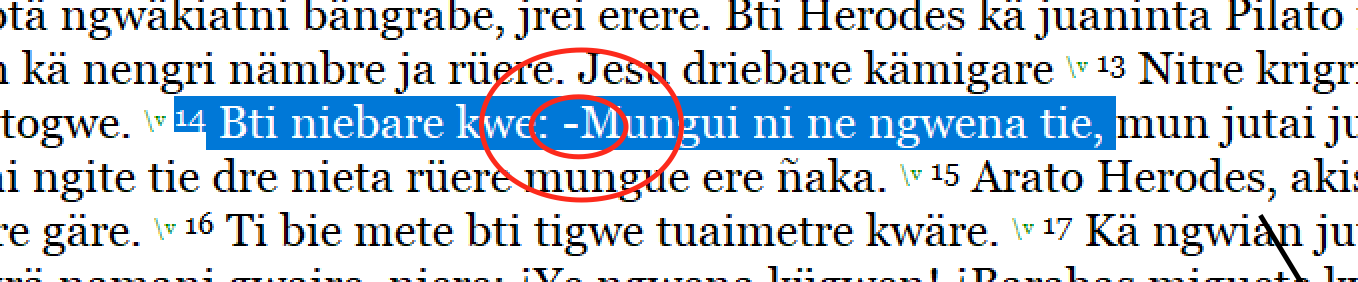
So, you're on Mac using Parallels and you run into the following while cleaning up a text:
This little mishap is a minus sign... but you know that the right character for typesetting is called an m-dash. How can you get an m-dash into ParaText quickly? Now, there is a great article that was written just a few days ago by Jeff Shrum on the ParaText 8 website called How to type M Dash and Other Characters not on Your Keyboard. This is an excellent article and this is exactly what I do to speed up the process of inserting special characters into the text. But, I wanted to add a few things to this article here.
Where are the character codes?
While the article linked to above gives some great character codes, it doesn't give you all of them and it doesn't tell you where to find them. So, if you are on a Windows machine or a Mac using Parallels (like I am), it's the same process.
- Click on the Windows' Home Menu.
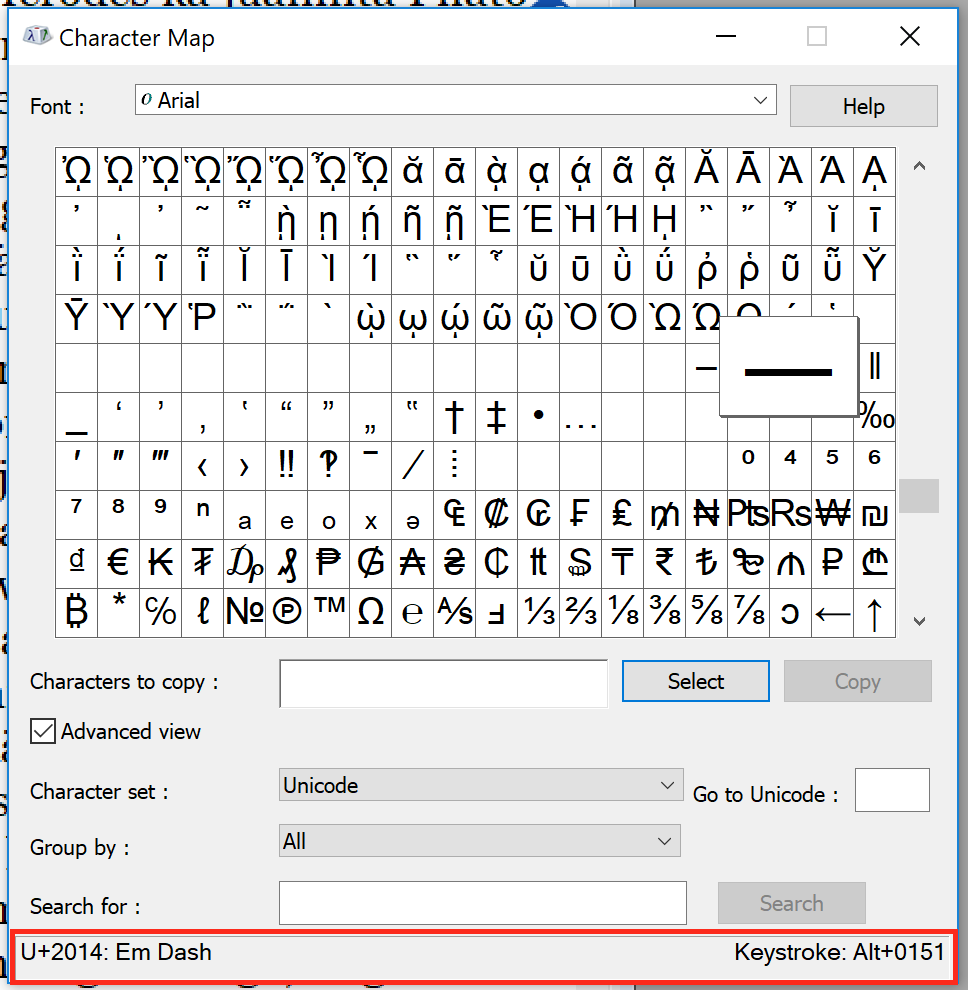
- In the search box, type: Character Map (or whatever it is in your language)
- Click on the Character Map program to open it.
- Look for your character of choice and hover over it with the mouse.
- On the bottom of the window, it will display the code. It will even give you a keyboard shortcut (the keystroke), which will work on a PC, but not on the Mac with Parallels.
You can find any character and its code and add it to your autocorrect.txt file just the way the artcile explains. The value of using the autocorrect.txt file is that you are creating shortcuts in ParaText that allow you, with very few keystrokes, to insert characters that aren't easily accessible to the keyboard but that you use often.
Now... one more way that might be helpful.
Doing it on the fly
Now, what if you need a character that isn't in your autocorrect.txt file, but you don't want to open up the file, edit it, save it back, close ParaText, reopen it, and start working again. Yup.. that's what you have to do to modify the file while working in ParaText. But, what if you need to add, say for example, the copyright symbol (don't ask me why you want to do this, but for the sake of argument, you do.) ©. You can do this.
On a PC you just have to use the Alt+ASCII_code, which in the case means holding down the Alt key and typing 0169. This will automatically convert into the © symbol.
But, on a Mac using Parallels, this does not work (as I said above). What do you do? First, find the Unicode value using the Character Map above (unless you just happen to know these things). Then do the following:
- Type out the value inside the text file. In this case, it will be 00A9
- Afterward, hold down the Option and the x keys at the same time.
- The unicode value will automatically be converted into the symbol or character you are trying to insert.
And voilà!!


0 comments
Sign in to join the conversation.